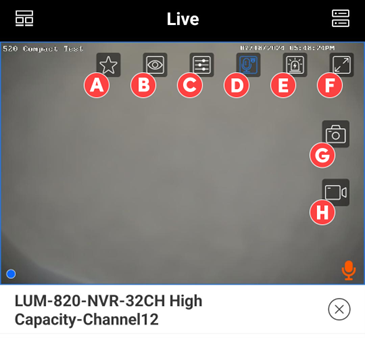
Luma View Camera Screen

Luma View Camera
  1. Favourite.
  2. Change the definition of the current image.
  3. Image settings – Adjust brightness, white balance, sharpness, image mirror, and zoom.
  4. Two-way talk
  5. a. If you are using Luma View to access the camera directly, this opens communication between the mobile device and that camera.
  6. b. If you are using Luma View to access the camera through the NVR (by selecting an NVR channel), this opens communication between the mobile device and the NVR.
  7. Alarm.
  8. Fullscreen.
  9. Take a snapshot of the current image to save to your mobile device.
  10. Start recording video to save to your mobile device.
More Insights

Control4 X4 Upgrade Guide

Find out what is required to upgrade to X4

Read More
Read More
Icon
Wattbox PDU User Guide

Guide to show you how to manually reboot devices on the Wattbox PDU

Read More
Read More
Icon
Get in Touch

Speak to us about your project

Planning a new install, upgrading an existing system, or need help getting things working as they should? We'll take a look and give you clear, honest advise on the best way forward.

No pressure, no jargon - just straightforward guidance and a system that works the way it should.

Call Rob direcly on:
+44 7926 744440
Or if you prefer, message me on WhatsApp
Thank you! Your submission has been received!
Oops! Something went wrong while submitting the form.