.png)
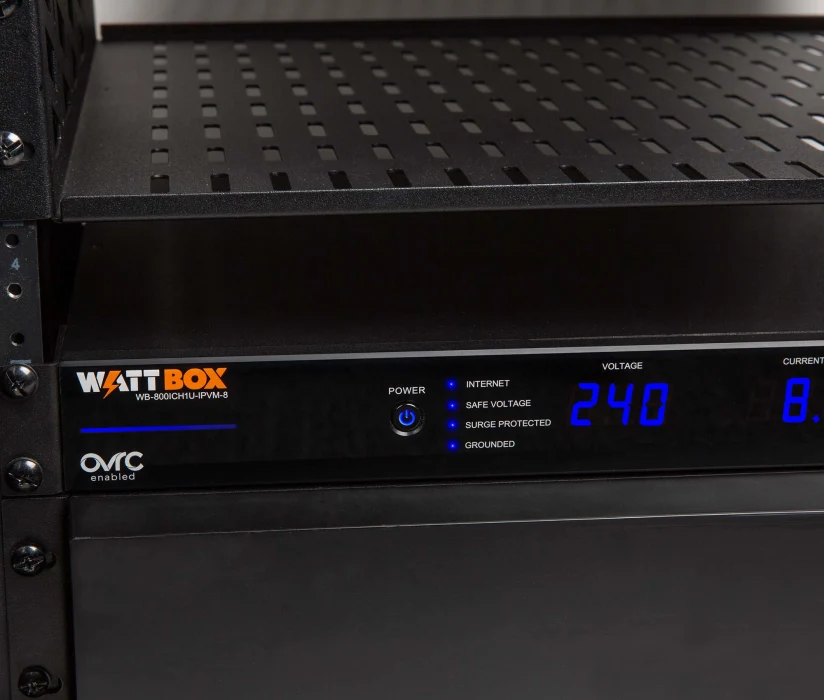
Front Panel

A. AC Power button: Press and hold for 3 seconds to manually toggle the outlets on or off. Outlets configured as Disabled or Reset Only are not affected.
B. LED indicators: See the status of the internet, Safe Voltage, surge protection, and whether the unit is properly grounded.
C. Input Voltage display: Displays the input voltage being supplied from the outlet.
D. Output Current display: Displays current draw in amps (A). This figure can be an aggregate of the combined outlets or a single outlet.
E. Outlet power indicator: Illuminates when the corresponding controlled outlet number is powered.
F. Button 1: Sequences through outlets 1 through 8 (left to right) displaying the Current for the specified outlet. Aggregate of all outlets display when clicking past outlet 8. This button is also used to reset individual outlets.
G. Button 2: Sequences through outlets 8 through 1 (right to left) displaying the Current for the specified outlet. Aggregate of all outlets display when clicking past outlet 8. This button is also used to reset individual outlets.
H. Accessory Outlet (Unprotected): Always-on, front-facing outlet for service use. Not IP controllable. A solid blue LED indicates the outlet has power and is working.
Reboot Outlet
1. Tap B1 or B2 to sequence through the outlets.
2. With the outlet number that needs to be reset flashing, press and hold B1 or B2 for 3 seconds. The Current display shows a rotating 0 as the outlet resets.
Reboot All Outlets
1. To reset all of the outlets, press and hold B1 and B2 at the same time for 3 seconds. The Current display shows a rotating 0 as the outlets reset.
Note: This will follow the customised bootup sequence that was setup on installation.
.png)