.png)

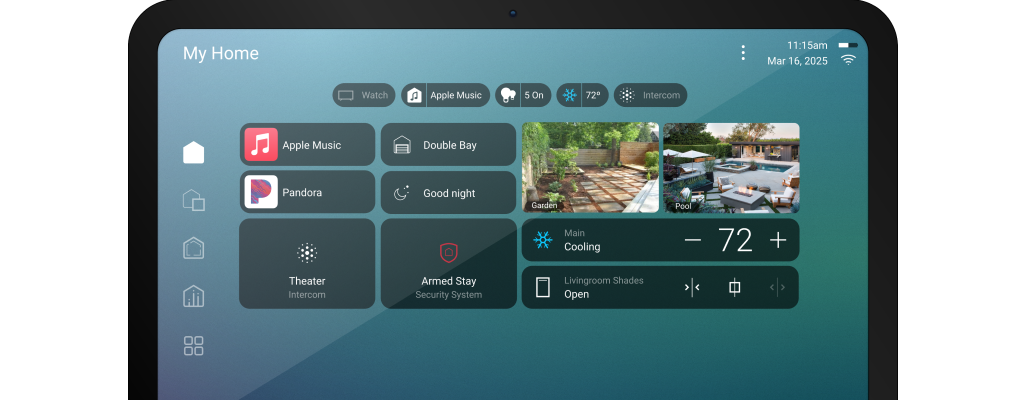
Luma View Home Screen
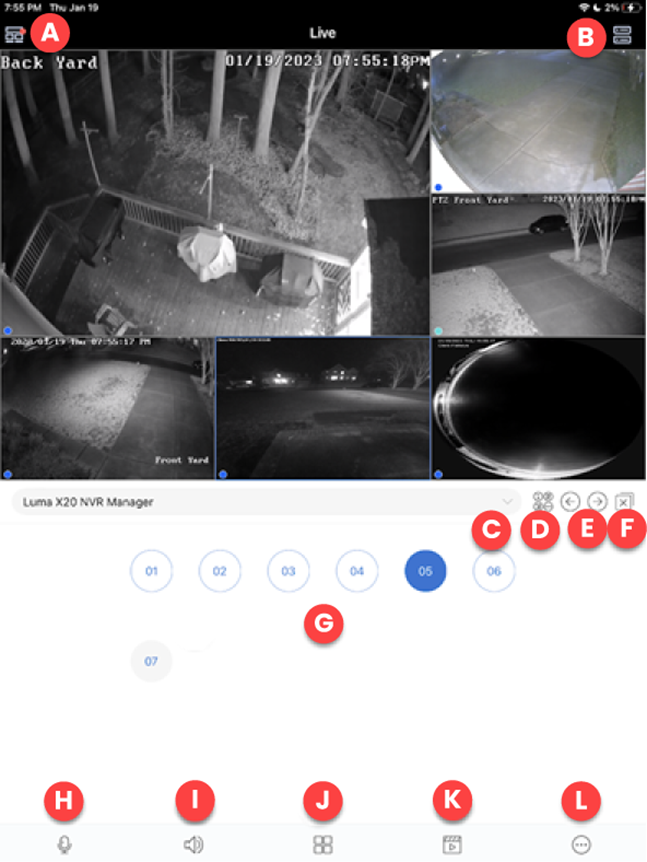
- Luma View app menu
- Server list – All devices that are assigned to your OvrC Connect account and their current status.
- Device list – All available devices for viewing. This includes NVRs and standalone IP cameras.
- Channel display – Change the display of your available channels below.
- Change channel group – Move entire camera screen between channel groups.
- Close – Close all live channels on the screen.
- Active channel selector
- Two-way talk
- If you are using Luma View to access the camera directly, this opens communication between the mobile device and that camera.
- If you are using Luma View to access the camera through the NVR (by selecting an NVR channel), this opens communication between the mobile device and the NVR.
- Audio – Open/Close audio if the camera is equipped with a microphone.
- Display mode – Choose different displays that can be shown using the Luma View app.
- Playback – Opens the remote playback interface for the camera currently selected.
- Options – Additional menu options.
.png)